Fire Reports
2 min read
Introduction #
Welcome to the Allday Time Systems Fire Reports Guide.
This document will cover:
Advanced Shift: #
- Navigating to Advanced Shift Fire Reports page
- Advanced shift fire report overview
- Advanced shift Fire Reports Screenshot
MyShift: #
- Navigating to MyShift Fire Reports page
- MyShift Fire Report Overview
- MyShift Fire Report
Navigating to Fire Advanced Shift Fire Report #
From the Freetime dashboard, click the ‘Reports’ tab.
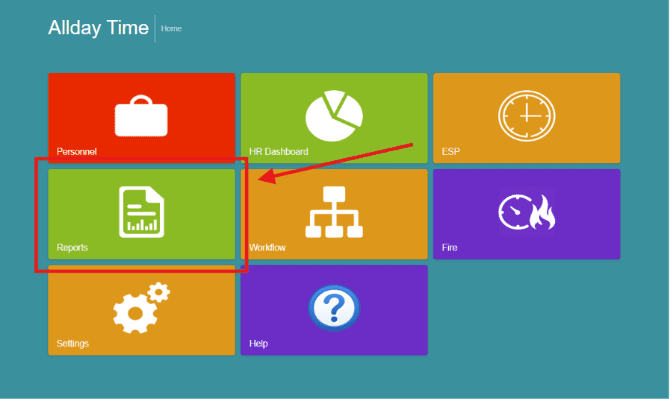
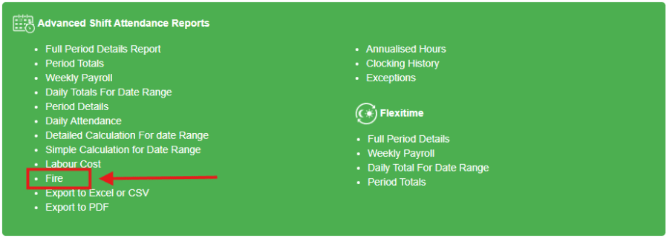
On the Reports page, under ’Advanced Shift Attendance Reports’ click on ‘Fire.’
Advanced Shift Fire Report #
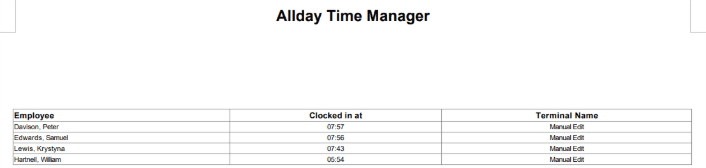
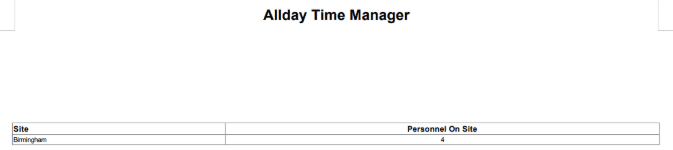
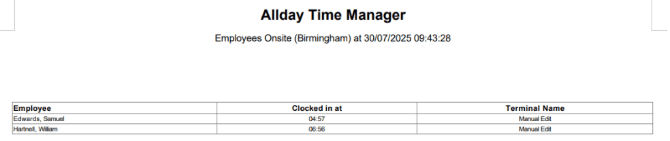
The advanced shift fire report allows you to pull live/most recent data from all terminals selected. The fire report is used for ensuring, in case of an emergency, all employees who have clocked in in the morning are listed on the report.
The report allows you to filter by the site you select, using the ‘Site’ dropdown.
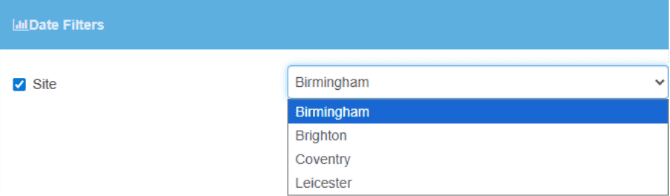
The terminal option enables you to choose from which terminal you would like to pull your data from.

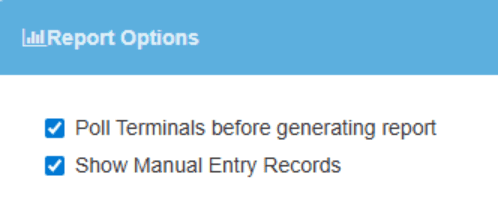
Under Report you can choose to
- Poll Terminals before generating report
- Show Manual Entry Record
Once completed, press ’Generate Report.’
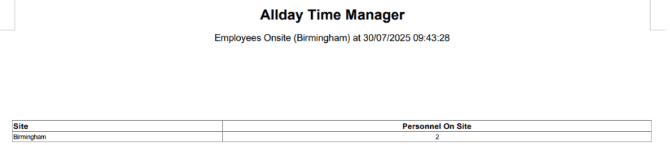
pg. 2
Navigating to MyShift Fire Report #
On the Reports page, under ’MyShift Attendance Reports,’ click on ‘Fire.’

MyShift Fire Report #
The MyShift fire report also allows you to pull live/most recent data from all terminals selected. As mentioned before, the fire report is used for ensuring, in case of an emergency, all employees who have clocked in in the morning are listed on the report.
You can filter the report by area through the options shown below.
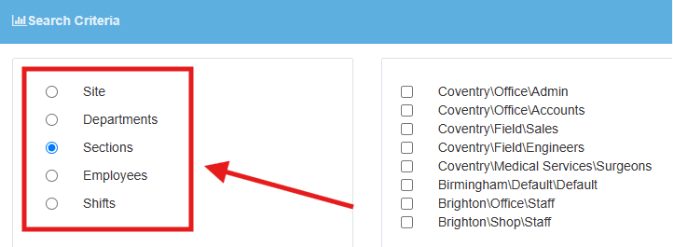
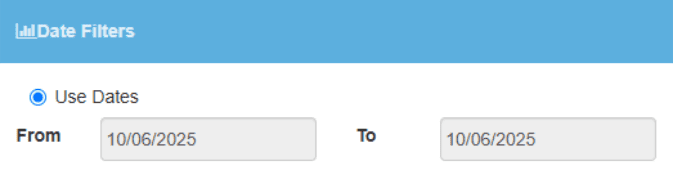
Next, within the ‘Date Filters Tab,’ filter the report using dates.
Note*: This is a fire report; ensure the date is set to the current date
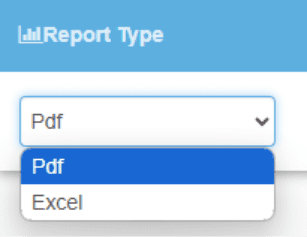
From ’Report type,’ select PDF report using the dropdown.
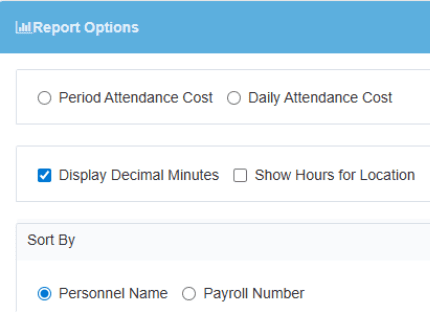
Under ’Report Options,’ toggle ’display decimals minutes’ and ’Personnel Name.’
Once completed, click ’Generate Report.’