
Navigating The Dashboard
2 min read
Freetime pro (Time Attendance) navigation #
The primary method of navigation within the Freetime Pro system is tile-based. The use of these tiles will quickly allow you to access any part of the system within several clicks.
As with most pages within the system, the tiles are reactive to the screen size you access the system with, so they will auto-shuffle to fit the screen.
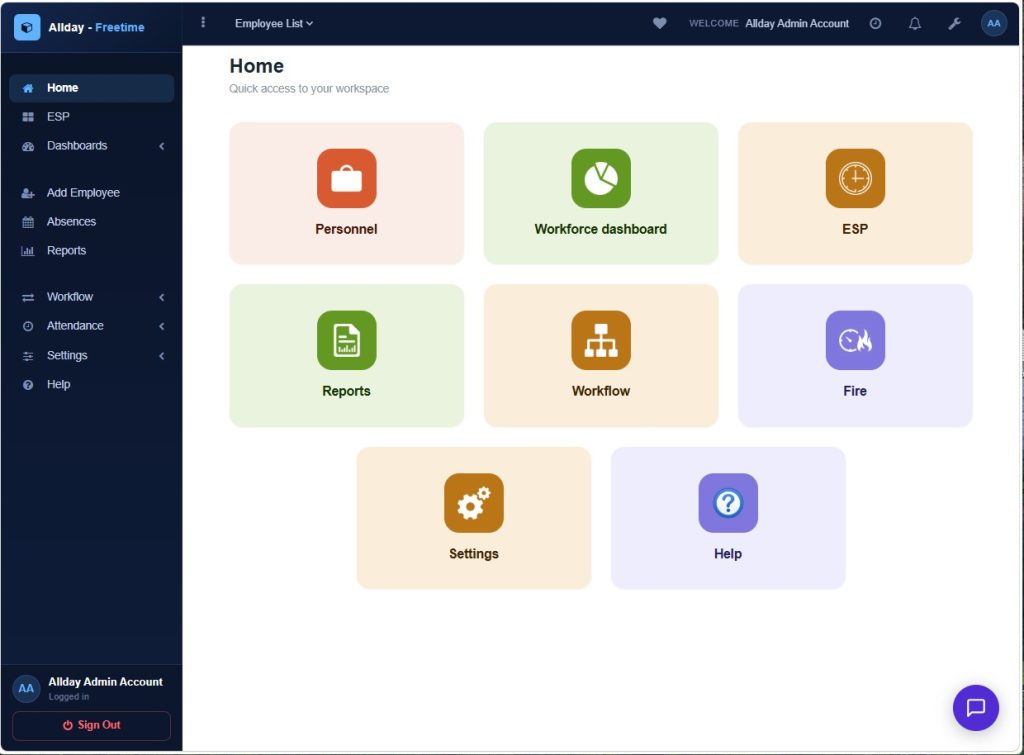
Tile navigation as seen on a typical desktop monitor above. And below as seen on a tablet-sized display.
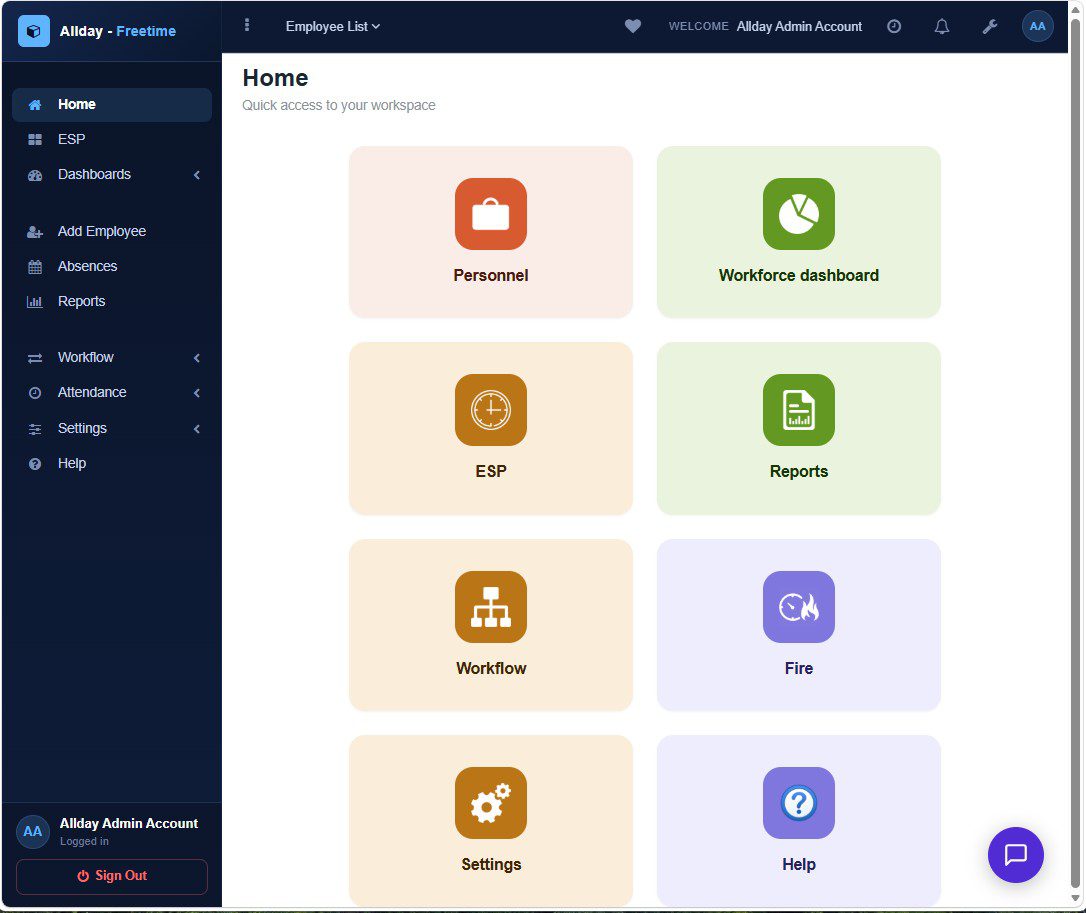
Once you have reached a major area of the system, you will leave the tile navigation. You can return to tile navigation by selecting the Home icon in the left navigation or if HR is enabled then there will be a Classic icon attop of the left navigation tree.
Left navigation tree should be availableian all screens sometimes to save space it may be minimised just click on the 3 dots atthe top of the tree to expand it again.
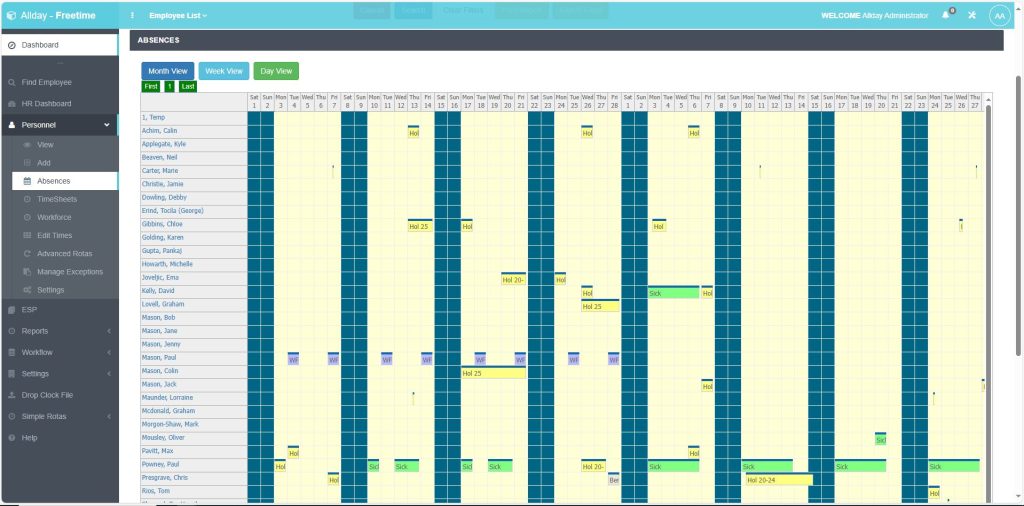
Freetime People HR navigation #
From the HR dashboard, you can use the left navigation tree but also there are additional widgets available.
You will notice in the HR dashboard that you will have workflow cards at the top of the page with counts of events or requests for your team of employees that you have access to.
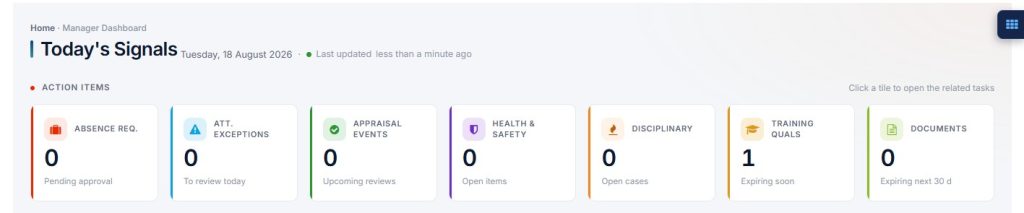
A selection click on any of these circles will produce a pop-up window containing further details of the listed events or requests for you to edit or take appropriate action.
Absence requests—from your employees requesting holidays
Attendance exceptions—any employee exceptions such as late arrival, unauthorized absence, or early departure…
Appraisal events—upcoming appraisal or review events or tasks or action points from previous meetings
Health and safety—any meetings or upcoming actions related to any accidents or critical issues found
Disciplinary events—meetings or follow-up meetings or actions related to disciplinary events
Training Qualifications—expiring qualification notices needing action
Documents expiring—any documents that have a review or expiry date approaching.


