Employee Sickness Records
1 min read
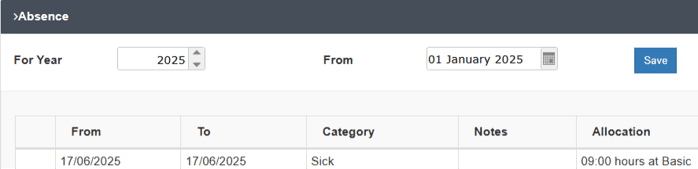
From the Absence tab on an employee record, click on the ‘Add Absence(s)’ button.
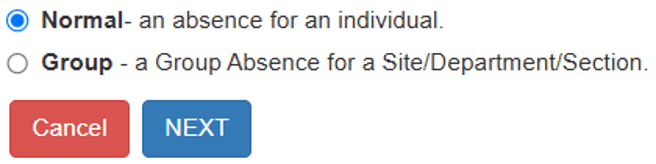
On the Add Absences page, select ‘Normal’ and click Next.
Select the date you want to book the absence using the calendar.

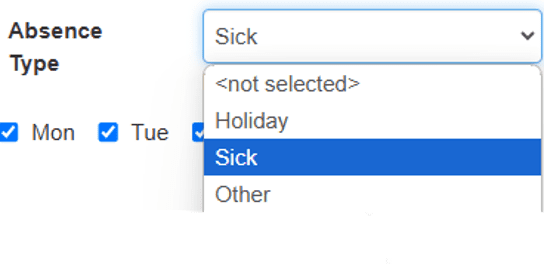
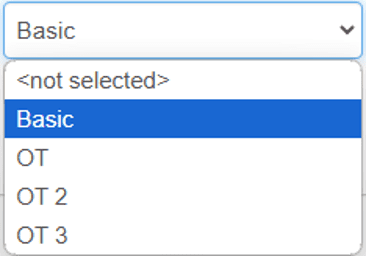
Then choose the absence type using the dropdown and include all days of the week the employee is working.

Choose how many days your employee has off using ‘This booking will count as.’
Note*: The integers represent days. You can also edit this time as needed.
e.g., a full day would be 1.00, and a half day would be 0.5.

To choose your employees’ absence times, you can select from the following:
- Allocate the hours as scheduled within the Employee’s shift setting
- Book, hours at
- Book From, to, at
‘Book From, To, and At’ allows you to choose the start time, end time, and rate for an employee’s absence.

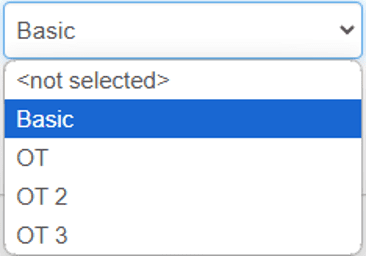
Note*: The employees’ rate will only matter if you choose to allocate the hours as worked/paid time.
Allocate the hours…’ allows the employee’s hours for the absence to be paid according to the rate selected.
Once completed, click on ‘FINISH.’
To view the employee’s absence, navigate to their profile, select the absence tab, and click on the ‘Absence’ dropdown.