Running and Understanding Attendance Reports
4 min read
Running Reports Guide
Introduction
Welcome to the Allday Time Systems Running Reports Guide.
Attendance reports in the Freetime system fall into 2 catergories
Myshift Reports and Advanced shift reports. Depending on the setup of your system and your licence you may have either or both sets of reports. But basically if your employees are assigned to Myshift shifts then the Myshift reports should be used and if the employees are assigned to Advanced shifts then the Advances shifts rports should be used.
This document will cover:
‘My Shift’ system:
Myshift shifts are designed to allow the operator to have full control and edit their own employee shifts without needing to contact the support team.
The Myshift reports may seem to be limited at first sight butthey are powerfull and can be filtered and manipulated in many ways to produce different layouts and totals as required so effectively replace many more static reports that could be found in the older Advanced reports system and are fully exportable with a single click to excel.
‘Advanced Shift’ system:
Advanced shifts are setup and fully managed by the support team any changes to shifts must be requested.
Some of the more common advanced shift reports are detailed below the principles of running each report are the same.
Full Period Details Report #
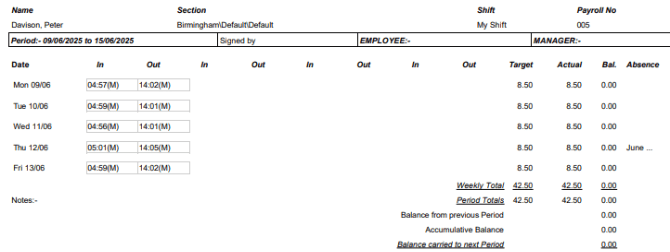
Full period details can be generated in PDF and Excel reports. This report enables an employer to view all employees’ time and attendance data and provides full information about employees’ period clockings.
Note*: By default, a period refers to an entire week.
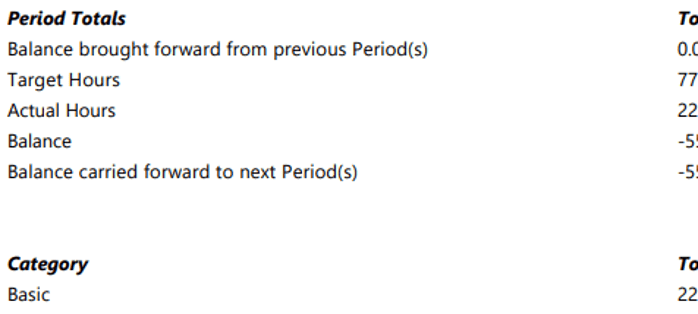
The export additionally displays
- Target hours
- Actual hours
- Balance
- Absences (if any)
How to use Full Period Details Report
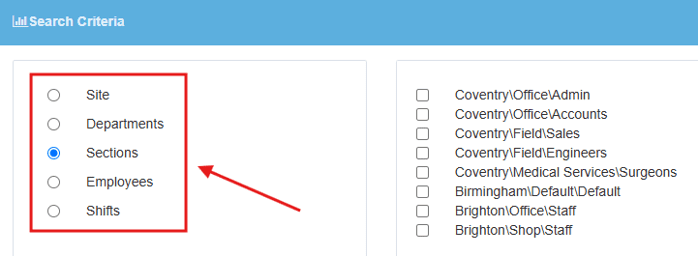
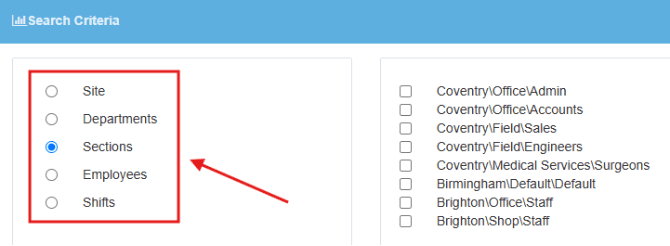
In the Full Period Details Report you can choose where you want the data to be collected from through filtering by the options shown below.
Under the ‘Date Filters’ section you can filter the dates the report should generate from, as shown below. If you want to use specific dates to filter the report, ensure that the dates cover your employees’ full period range.
Note*: By default, a period is equivalent to one week unless edited.
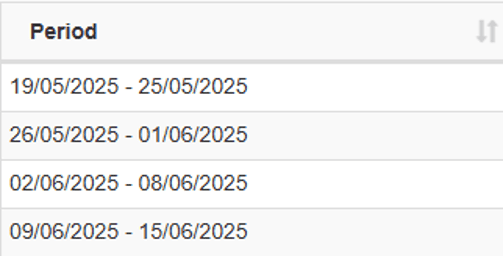
Note* 2: To check an employee’s period, navigate to their profile, select the ‘Totals’ tab, and select the ‘Totals Data’ dropdown.
The example below shows that the employee is on a Monday to Sunday period.
If still unsure, contact the support team at support@alldaytime.co.uk.

From the ‘Report Options’ section, you have the option to display minutes on a report through decimal minutes or hours for location. You can additionally filter the report by:
- Sort By Personnel Name or Payroll Number
- Report Orientation: Portrait or Landscape
- Exceptions
Once completed, select an export choice from PDF or Excel.
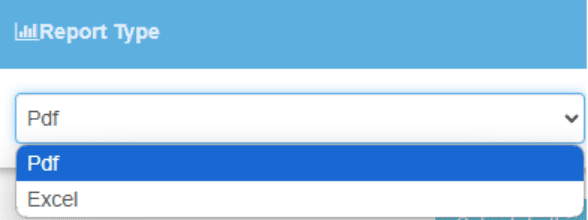
Then click ‘Generate Report.’
The Full Period Details Reports display all ‘time attendance’ data of an employee. The format for the report goes as one employee per page.
Weekly Payroll Report #
The weekly payroll report is a PDF report that generates an employee’s worked hours. The report allows an employer to view an employee’s:
- Target hours
- Weekly total
- Day total
- Basic & Overtime Totals
- Absence booked & hours
In the Weekly Payroll Report, you can choose where you want employees’ data to be collected from through filtering by the options shown below.
From the ‘Date Filters’ section, you can filter the report through dates.
Note*: Ensure the date range matches the employee’s period.

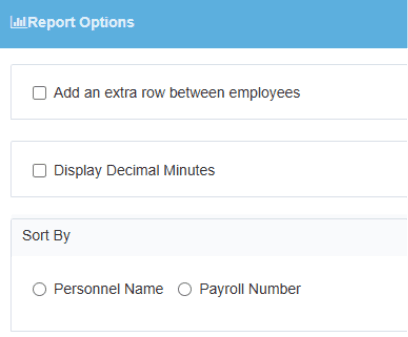
From the ‘Report Options’ section, you have the option to display minutes on a report through decimal minutes or hours for location. You can additionally filter the report by:
- Sort By Personnel Name or Payroll Number
- Add an extra row between employees
Once completed, choose an export option: PDF or Excel.
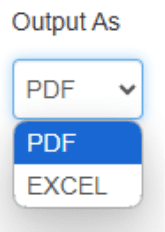
Then click ‘Generate Report.’
The generated Weekly Payroll Report formats employees, one per row on the export table by default, as shown below.

The report additionally displays all the employees’ totals at the bottom of the report.