
Employee Status Panel
1 min read
Introduction #
Welcome to Allday Time Systems. Employee Status Panel Guide
This document will cover:
- Navigating to the ESP page
- Overview of ESP
- Filtering Employees
- IN & OUT buttons
- Sort Data & Table [TBC, dropdown does not work properly yet]
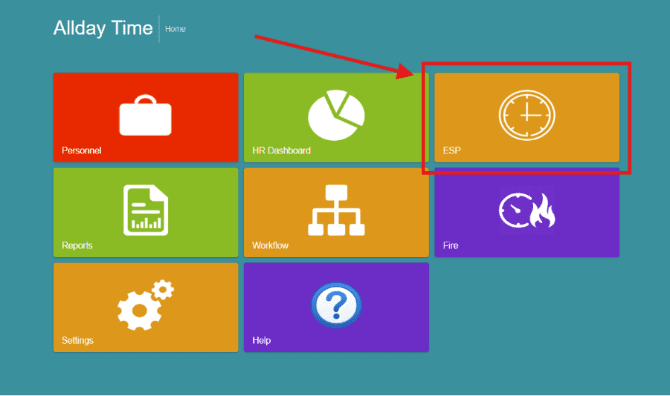
Overview of the Employee Status Panel #
The ESP page displays a list of all the employees that are clocked in for the current day along with all employees who aren’t clocked in for the day. The green circles next to employees’ names indicate the employee is clocked in for the current day, and the dark orange circle next to an employee’s name indicates the employee has not clocked in for the current day.
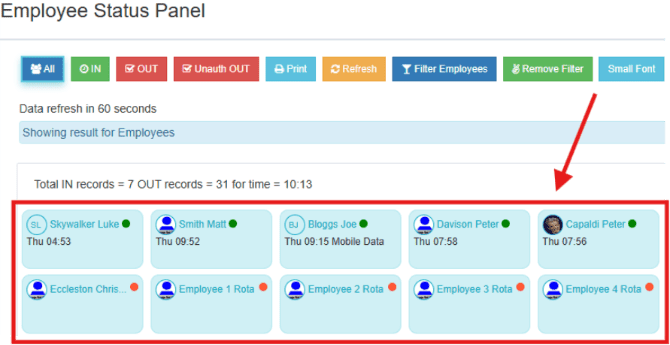
On the employee status panel, you can select to view:
- ‘ALL’ employees
- Only all employees clocked ’IN’
- Only all employees clocked ’OUT’
- All unauthorized absences ’OUT’

You can also generate a report displaying all employees clocked ’IN’ and ’OUT’ for the current day.

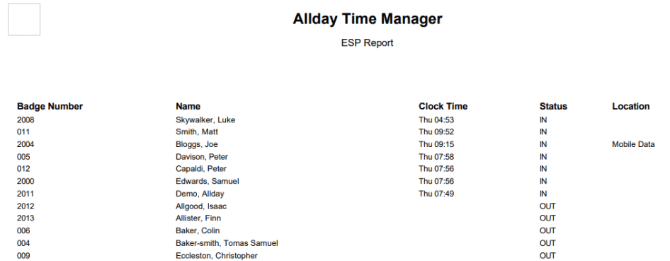
along with the option to:
- Refresh
- Filter Employees
- Remove Filter

You can additionally toggle between Large font and small font by selecting the large font option, top right of the page
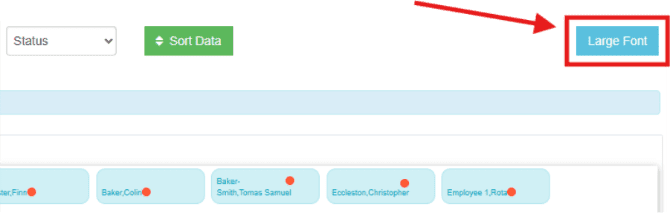
and the small font option, under the Employee Status Panel header

Filtering Employees #
To filter employees on the ESP page, select ’Filter employees.’

Once on the ’Find Employees’ page, select all the employees you would like to view and click ’Ok’ to confirm.


