

Mass import of Employees
1 min read
Importing employees
Employees can be imported and created on mass by the use of an import csv file see example below.
Note when creating this file please remove all blank rows or columns if creating from an excel file as importing of many blank rows or columns will cause import to be awkward or fail.
How to import the file #
Navigate to the import employees page
You will find this page by selecting the “Settings” button followed by the “Import employees” button.

Select the “Choose File” button and select your file .
Press the “Get Data” button
Mapping data #
Your imported columns from your csv will be listed on the left side . Select the appropriate system field that represents each of your fields.
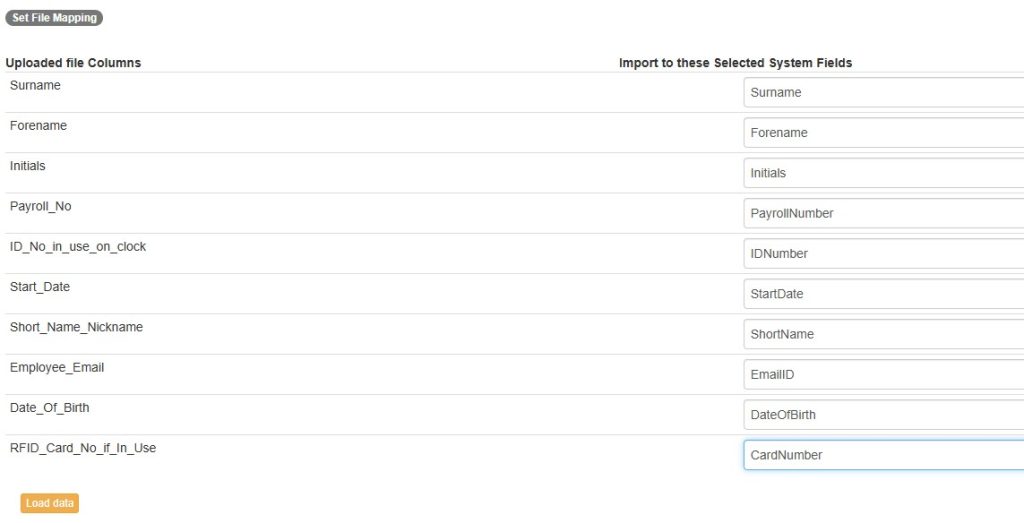
When complete select the “Load Data” button
Employee additional fields and creation #
Each new employee will appear on a new row and you will have several drop box selections to change the shift they will be on and other system fields.

After completing your selections click the “Import Data” button and your employees will be created in the system.
Any issues such as incomplete selections or invalid data will be notified to you but if all is ok with an employee this will be indicated by a “Success” notice next to each employee.


