

Attendance reports for Myshift employees
2 min read
What reports can I use?
MyShift has several specific reports available, though the most important are the Clock Card report and the Dynamic Data Grid.
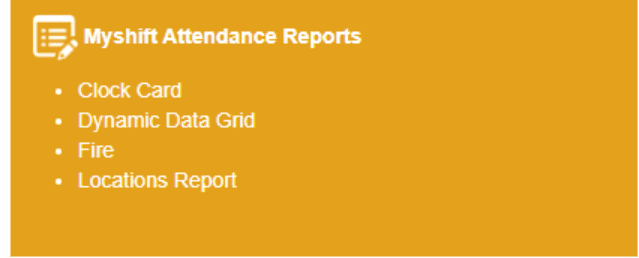
Clock card report #
The Clock Card Report is a PDF report designed to allow you to quickly check the clocking information for a Site, Department, Section, or selection of individual employees.
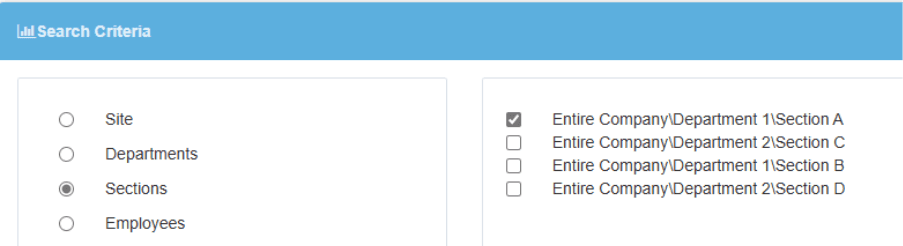
We must first choose which of these we would like to create a report for. In the example below, we have chosen to select by Section, and chosen Section A of Department 1.
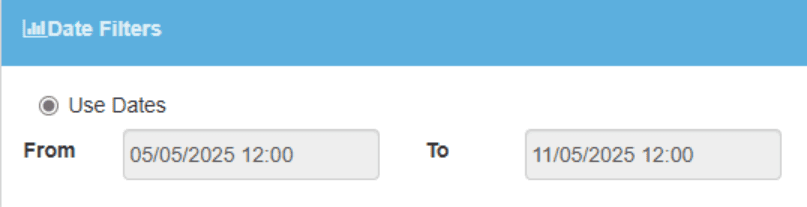
We then choose the date range- in this example, we are choosing to look at a whole week from Mon-Sun, 5/5/25 – 11/5/25. However, you can choose any date range you like, from a single day to multiple months.
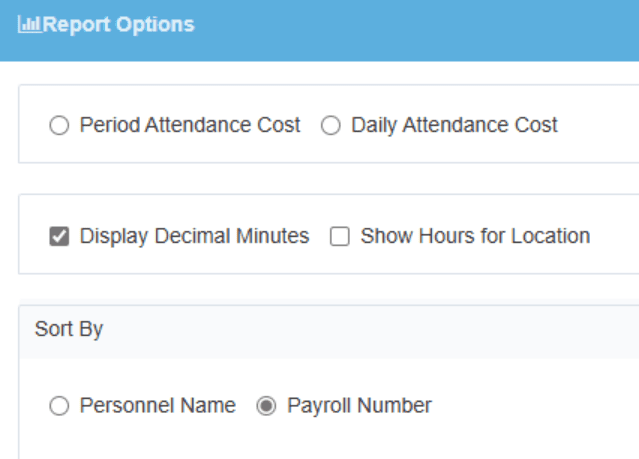
Before we generate the report, we have some other options we can choose from, such as whether we want to display decimal minutes, and if we want to sort by personnel name or payroll number.
There are also options such as choosing what exceptions we want the report to show.
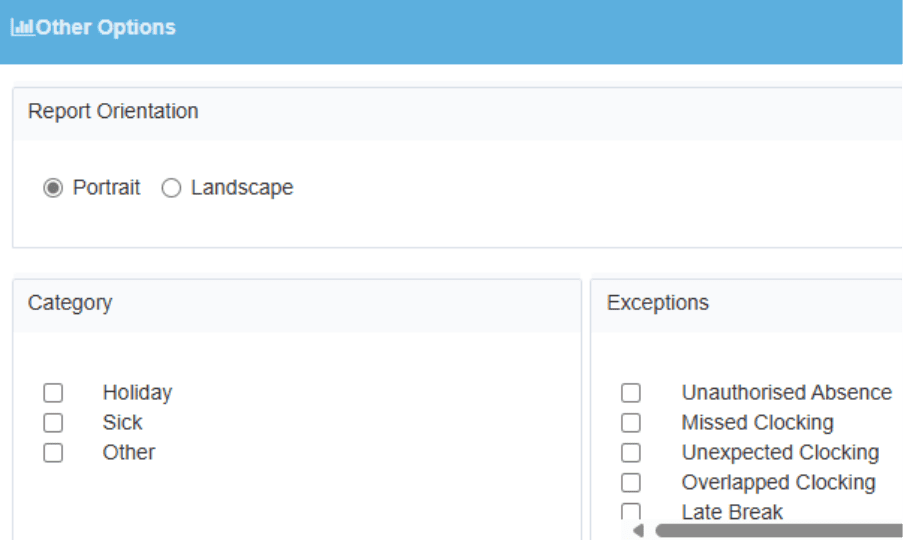
When you’re happy with the options you’ve selected, click Generate Report.
Depending on the number of employees and the date range you’ve selected, it may take a few minutes to generate.
Dynamic Data Grid #
Alternately, MyShift allows you to set up your own custom excel exports using the Dynamic Data Grid.
To use the Grid, you must first filter the data you want to see the same way you selected in the Clock Card Report. In the example below, we have once again selected Section A of Department 1. This time we’re filtering for Monday 26 May to Friday 30 May.
It’s also important you choose the type of report from the drop-down, as this will further filter the data to the format you want from the system. In this case we’re choosing the Full Period Details report, to get all the information the system has.
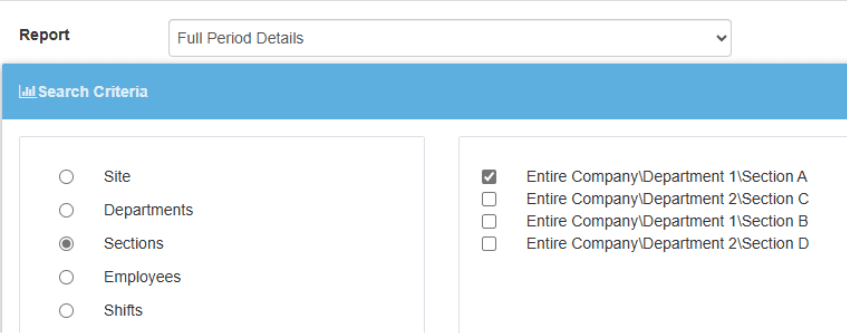
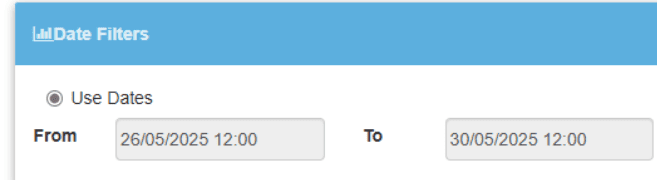
Once we’ve selected these, and any other option we want, scroll down and click ‘Load Data’.

This will load up the data for us to arrange and export:
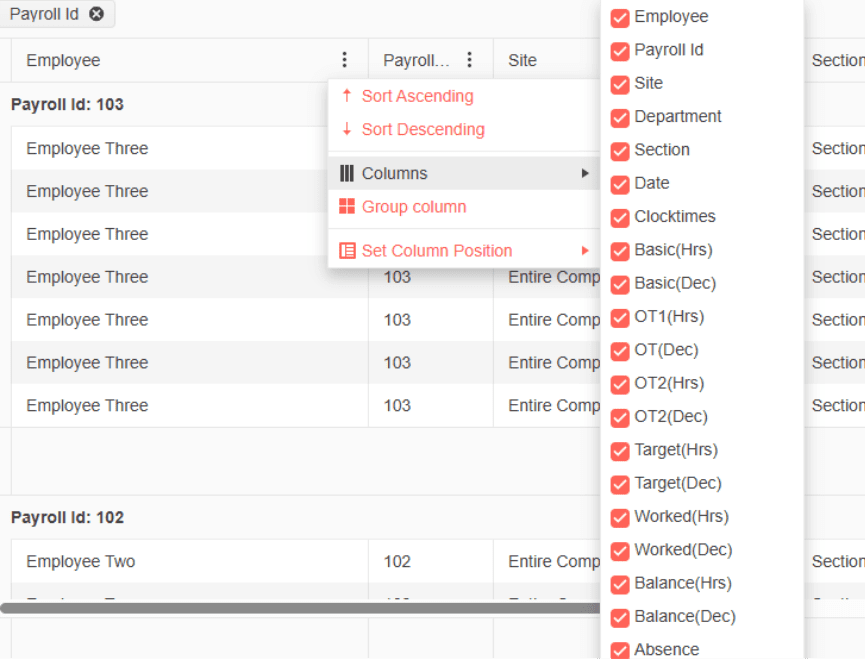
By default, the grid will arrange the data by employee payroll number. However, you can click the three dots on any column header to group the data by that column, and use the “columns” tick boxes to decide what you want it to export.
You can even arrange the columns yourself by clicking and dragging them, or using the “Set Column Position” option.
Before you export, there’s also the option to save the export you’re creating for later use at the top:

Creating templates allows you to quickly load the export options you prefer or use regularly. When you’re done, simply click ‘Export to Excel’ for Freetime to convert your selections to an excel document which will auto download to your downloads folder.
For further help and assistance please contact Allday Time support team via live chat for an instant response on the system or email support@alldaytime.co.uk or call 01252 544457.


